Web App
The web app is the safest place to start. It handles setup, projects, ingestion, deterministic evidence exploration, graph browsing, watchers, and API keys.
Use The Right Screen
| Goal | Screen | Go Deeper |
|---|---|---|
| Get through the first local run | Onboarding | Quick Start |
| Add files, URLs, PDFs, or a repo snapshot | Ingest | Add Knowledge |
| Search and inspect exact evidence | Explore | Explore |
| Keep repository docs fresh | Watchers | Watchers |
| Store a token or service credential | Settings → Credentials | Credentials |
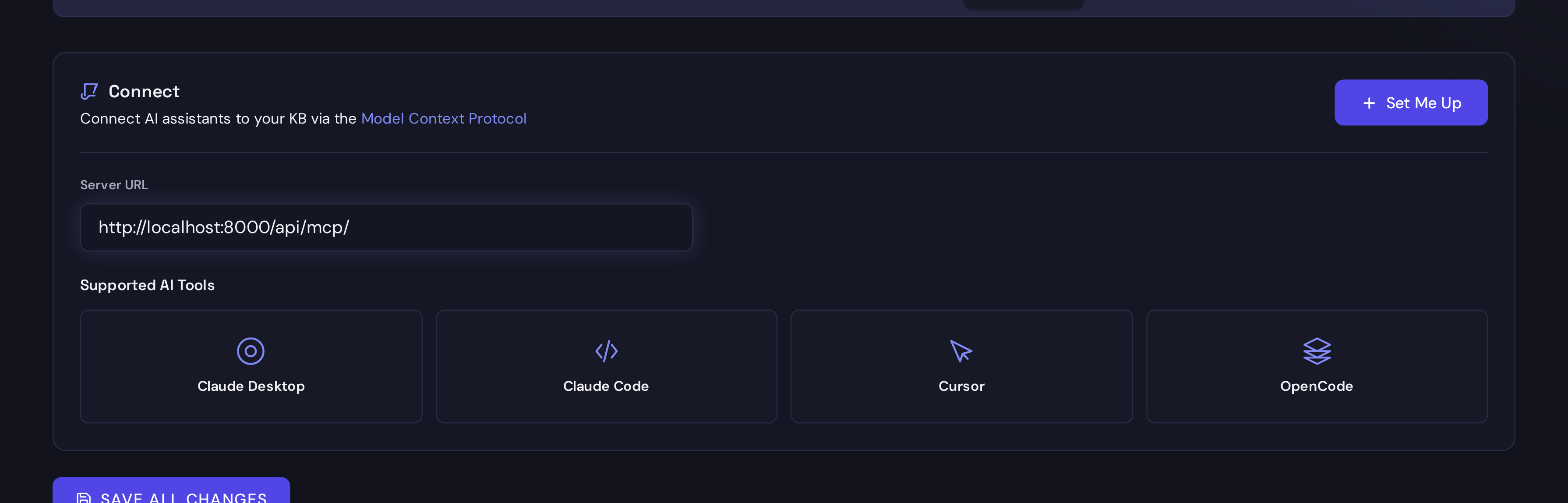
| Connect Claude, OpenCode, or another agent | Settings -> Connect | MCP for AI Agents |
| Create scoped automation tokens | Settings -> API Keys | API Keys |
| Configure shell or CI retrieval | Settings -> API Keys, then synth login | CLI Automation and CI/CD |
| Tune providers and models | Settings -> Providers / Models | Configuration |
| Review project memory directly | Knowledge / Graph | Knowledge Graph |
| Track spend and usage | Analytics / Budget | Cost Management |
First UI Workflow
Use this path when you are learning Synth or validating a new install.
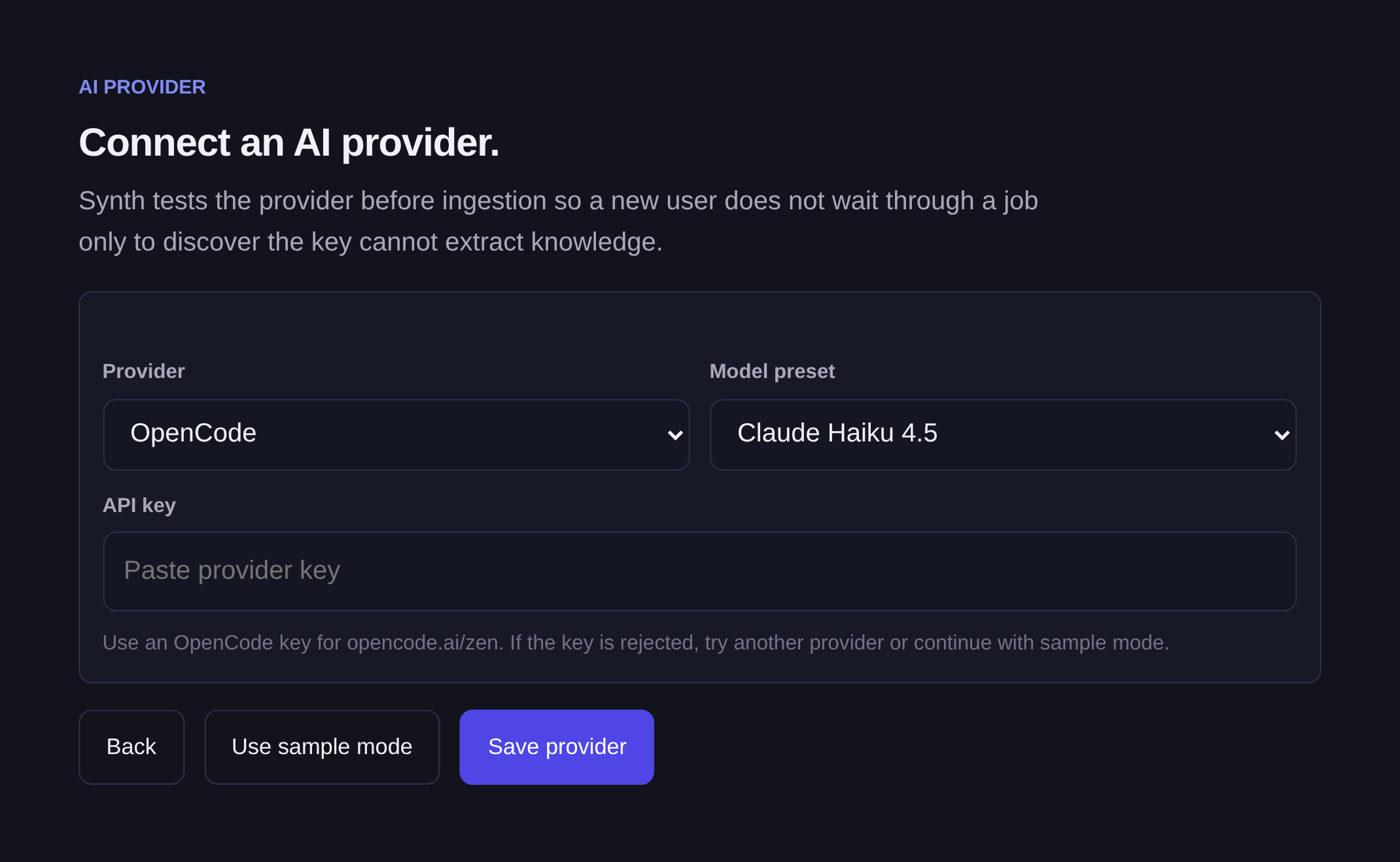
- Finish onboarding. If you do not have a provider key ready, choose sample mode so you can verify the product path first.
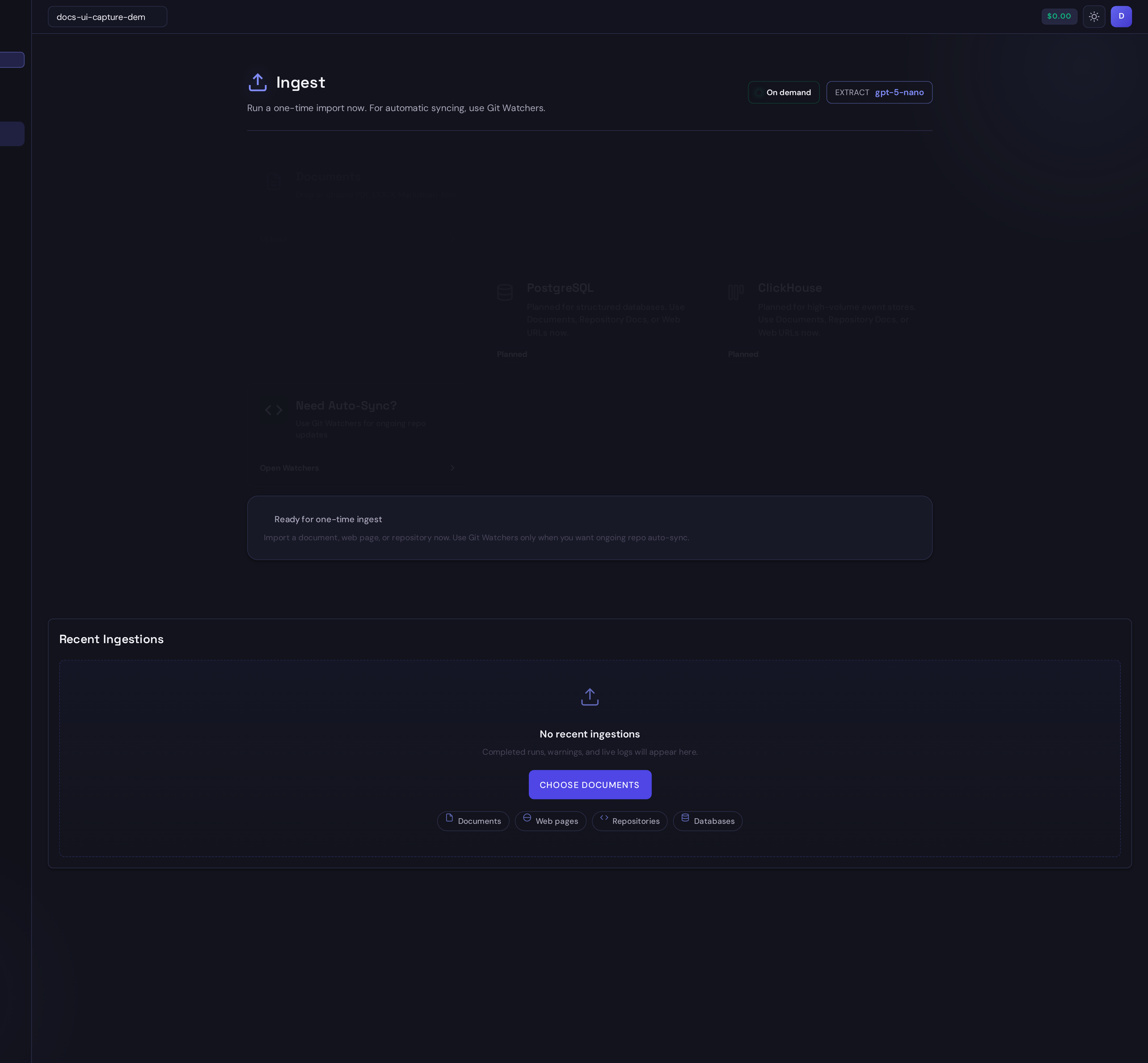
- Open Ingest and choose the source type that matches the material you want to add.
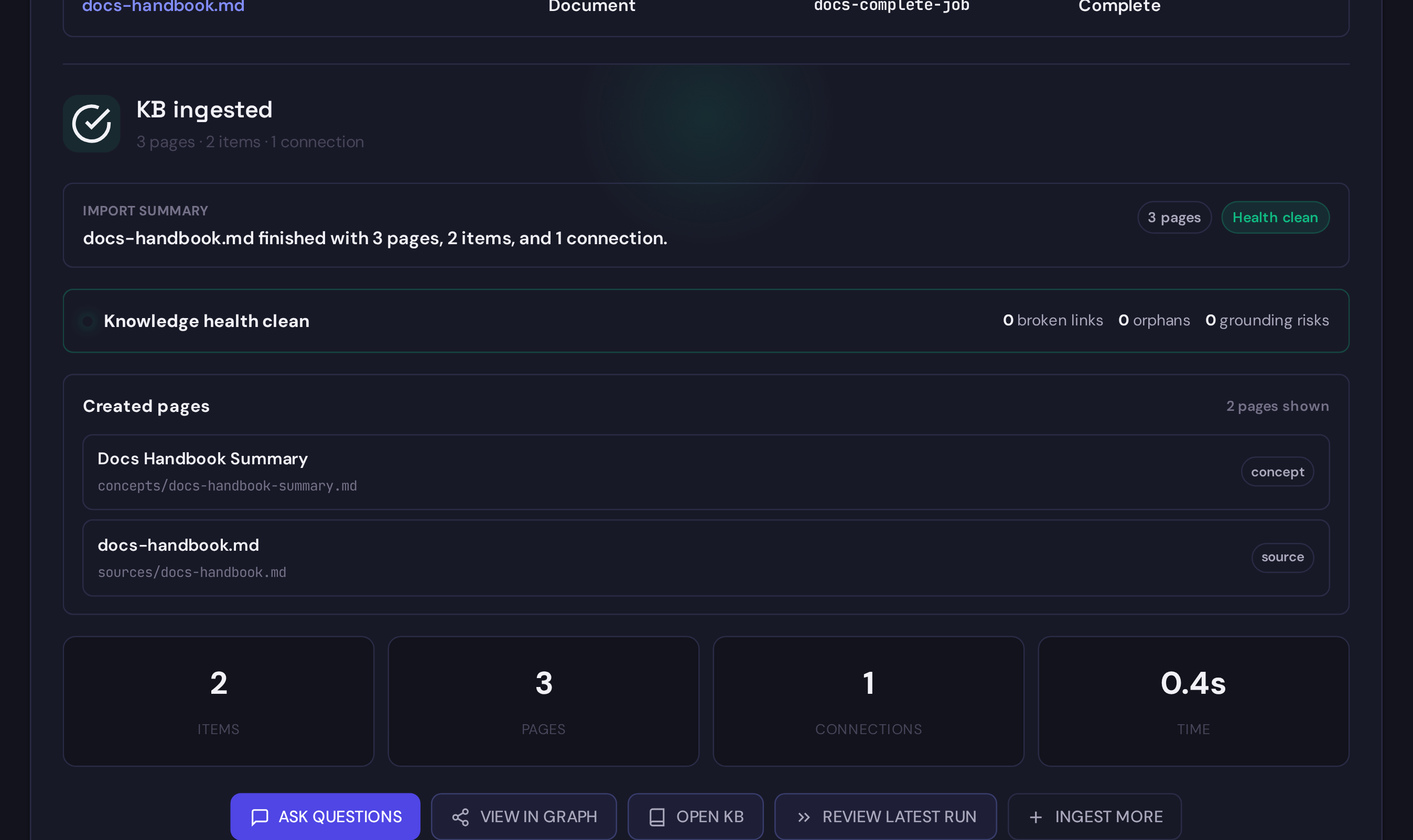
- Wait for the result panel and inspect the created pages before asking questions.
-
Open Explore, enter a focused natural-language query, and inspect the ranked evidence cards. Open a card to verify the exact page revision and highlighted line range, then use Copy for agent for synthesis elsewhere.
-
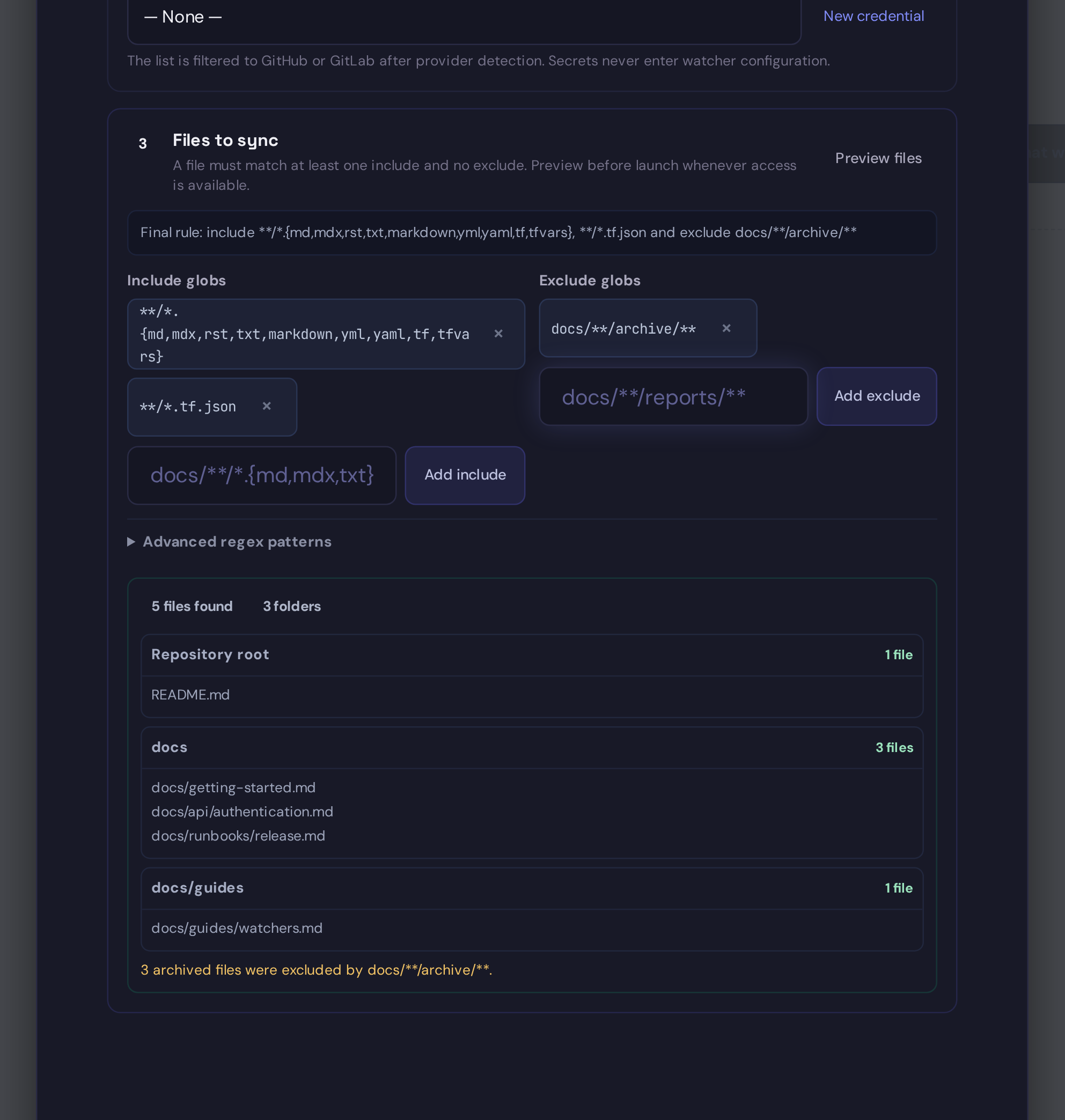
If the source changes over time, create a Git watcher and preview matched files before you save it.
- Connect an AI tool from Settings -> Connect after Project search returns useful evidence.
Daily Habits
- Start with Ingest for one-time additions and Watchers for sources that change.
- Use Explore for focused evidence searches and exact revision inspection.
- Create narrow API keys in Settings -> API Keys instead of reusing an admin token.
- Use recent-query chips to repeat useful local Explore searches.
For repeatable automation, prefer the REST API or MCP tools.
For shared team project storage, see Remote Git Backends.